Trading Setup
You do not need a broker account to use OpenAlice. Research, watchlists, issues, workspace automation, and Inbox all work without trading credentials.
Connect a broker only when you want Alice to prepare orders against a real account model. Start with paper or demo trading. Live trading should come after you have tested the workflow yourself.
The Safe First Path
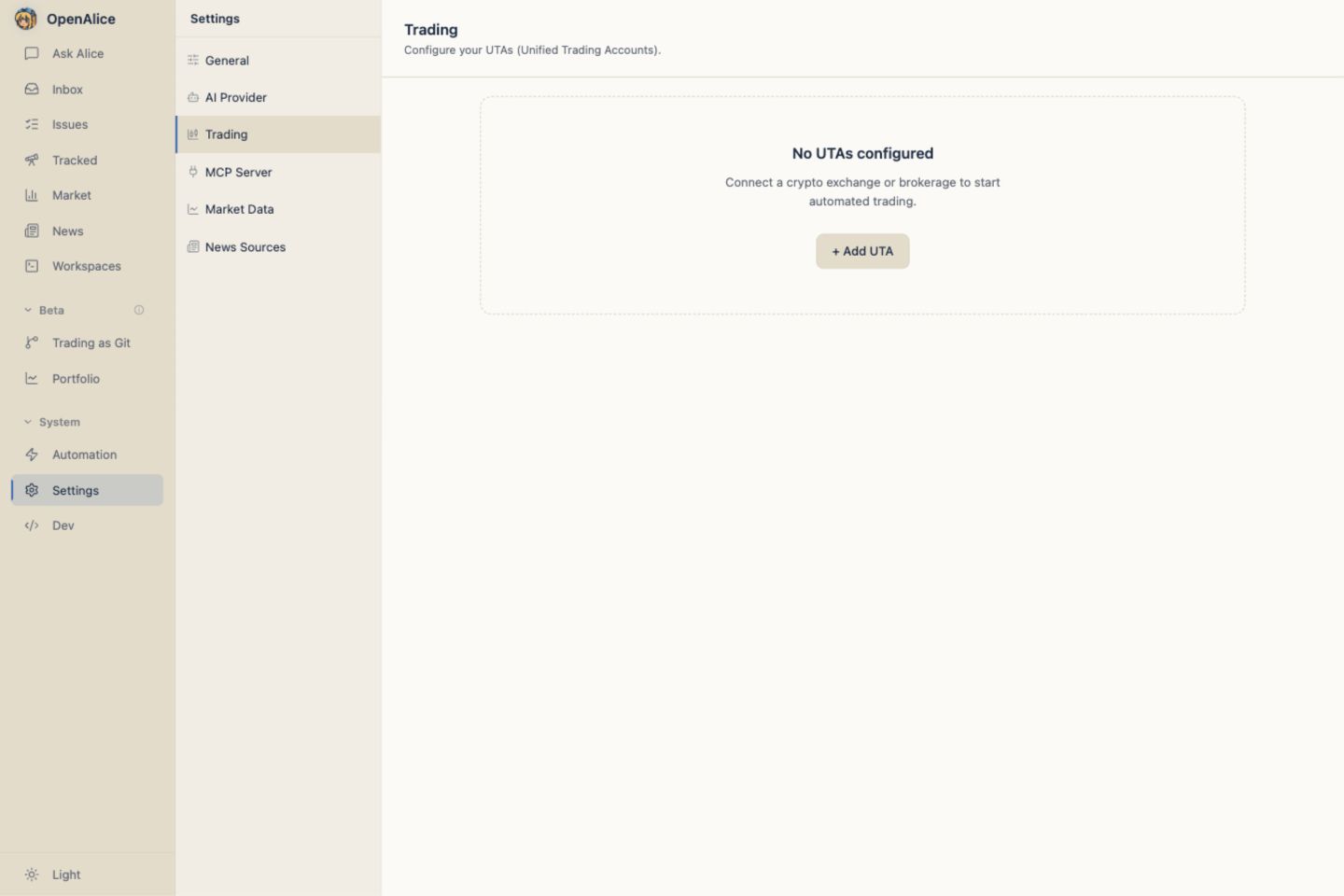
- Open the Web UI's Trading page.
- Add an account through the setup wizard.
- Install the requested Broker Pack if OpenAlice prompts for it.
- Pick a paper, demo, or testnet mode.
- Let the wizard test the connection before saving.
- Ask Alice to stage a small test order.
- Open Trading → Trading as Git and review the commit.
- Approve the push only if the intent looks right.
Alice can stage and commit trading intent. Keep the default Allow AI to push
trades setting off so execution requires your approval in the Web UI or a
linked Telegram owner's /uta panel; treat that manual approval wall as the
recommended safety boundary. Pro mode can delegate push authority to the AI,
but that is a separate explicit opt-in.
What a Connected Account Gives Alice
Each connected account becomes a Unified Trading Account. Alice sees a consistent account surface instead of a raw broker API:
| Capability | What Alice can do |
|---|---|
| Account state | Read cash, equity, buying power, positions, and open orders where the broker reports them |
| Contract search | Find tradeable contracts and produce aliceId identifiers |
| Order staging | Prepare orders inside the Trading-as-Git staging area |
| Commit history | Explain what changed and why before anything is pushed |
| Approved push | Send approved operations to the broker |
| Sync | Track fills, cancellations, rejections, and observed external orders |
| Snapshots | Capture account state for the equity curve |
The broker itself stays behind the UTA boundary. In normal use, you pick the account and contract; Alice does not need to reason about each broker's native API shape.
Install broker support on demand
OpenAlice core includes UTA orchestration and the Mock simulator, but not live broker SDKs. Choosing CCXT, Alpaca, IBKR, LeverUp, or Longbridge may therefore show Install broker support before the credential form.
OpenAlice downloads the exact version/platform catalog and checksummed Pack, validates it, switches an atomic active pointer, and restarts UTA. Installation does not create an account or grant trading authority. A failure leaves Alice, Chat, Mock, and unrelated installed engines usable.
After an OpenAlice production upgrade, already installed Packs are reconciled to the current release automatically. A compatible older Pack can continue serving until the verified replacement is ready; Packs that were never installed remain an explicit choice. Existing accounts surface Install, Update, or Repair when manual attention is needed.
See Broker Packs for installation, automatic updates, repair, platform, persistence, and backup details.
Recommended First Accounts
| Preset | Markets | Best first mode | Notes |
|---|---|---|---|
alpaca | US stocks and ETFs | Paper | The easiest first securities account. Paper and live use separate API keys. |
bybit | Crypto spot and derivatives | Demo Trading or Testnet | Demo Trading uses real market data with simulated fills; Testnet is a separate environment. |
okx | Crypto spot and derivatives | Demo Trading | Requires demo-specific API keys from OKX's demo console. |
binance | Crypto spot and futures | Demo Trading | Uses Binance's demo simulator. Use demo keys, not live keys. |
ibkr-tws | Stocks, options, futures, FX, bonds | Paper TWS / Gateway | Powerful but heavier. Requires TWS or IB Gateway running locally. |
longbridge | HK, US, CN A-shares via Stock Connect, SG equities | Paper | Uses Longbridge OpenAPI credentials. Access tokens expire and must be rotated manually. |
mock-simulator | Simulated account | Local testing | No real broker or money. Useful for UI and workflow testing. |
Keyless Data Accounts
The Trading page can enable optional keyless read-only crypto data sources for
Binance, OKX, and Bybit. They are disabled by default. An enabled source appears
as binance-readonly, okx-readonly, or bybit-readonly and provides public
K-lines without an API key. It cannot place orders and does not appear as a
portfolio account.
These sources run through UTA, so select Readonly or Pro mode first. Toggling a source restarts UTA to apply the runtime configuration.
Adding an Account
The setup wizard has three steps:
| Step | What happens |
|---|---|
| Pick | Choose a preset from the catalog. |
| Configure | Fill in the fields for that broker and mode. Password-like fields are masked. |
| Test & save | OpenAlice connects to the broker with those credentials. Save is enabled only after the test passes. |
This catches the common setup mistakes before anything is stored: bad keys, wrong region, using live keys against a demo endpoint, or missing broker-specific fields.
Broker credentials are sealed at rest. The account store is encrypted under a machine-bound key, so the setup wizard is the normal way to add or edit accounts. See Data & Credentials.
Broker Notes
Alpaca
Alpaca is the simplest paper-trading path for US equities and ETFs. Create Paper keys in the Alpaca dashboard, choose Paper mode in OpenAlice, and test the connection.
Alpaca is also the first broker where attached take-profit / stop-loss brackets are supported end to end. See Orders & Execution.
Crypto Exchanges
Binance, OKX, Bybit, Bitget, Hyperliquid, and ccxt-custom use the CCXT engine behind their presets. Modes are exchange-specific:
- Demo, testnet, and live credentials are usually separate.
- Some exchanges use real market data with simulated fills; others use separate testnet markets.
- If a requested demo/sandbox mode is not supported by that exchange, OpenAlice refuses the connection instead of silently falling back to live.
Attached TP/SL is refused on CCXT venues until support is verified per exchange. Place the entry first, then place a separate protective stop or take-profit order.
Bitget Classic
The bitget preset supports Bitget Classic accounts, not Bitget Unified
Trading Account (v3). One OpenAlice UTA exposes two explicit compartments:
Spot (spot) and USDT-M Futures (derivatives). Account and position
reads can aggregate both, while the detail page can scope the view to either
compartment.
Open-order reads cover regular, trigger, TP/SL, and trailing namespaces. If one
required private read fails, OpenAlice reports the incomplete read instead of
presenting a plausible but partial balance or empty order list. Staged writes
must choose spot or derivatives; see Orders & Execution.
IBKR
IBKR connects through a local TWS or IB Gateway socket. There are no API keys in OpenAlice; you run TWS/Gateway locally and enable socket clients.
Default ports:
| Mode | TWS | IB Gateway |
|---|---|---|
| Paper | 7497 | 4002 |
| Live | 7496 | 4001 |
IBKR is powerful, but it is not the easiest first account. Start with it if you already use TWS/Gateway and understand its account model.
Longbridge
Longbridge supports HK, US, CN A-shares through Stock Connect, and SG equities. It uses appKey, appSecret, and an access token from Longbridge OpenAPI. The access token is time-limited and must be rotated manually.
Contract Identity
Every tradeable contract gets an aliceId:
alpaca-paper|AAPL
bybit-demo|BTC/USDT:USDT
ibkr-live|265598
The left side is the OpenAlice account id. The right side is the broker-native contract key. This makes "AAPL in Alpaca Paper" distinct from "AAPL in IBKR Live", even when the market symbol looks the same.
Alice and the Web UI use aliceId whenever an order needs to target one exact contract.
Contract Search
Contract search runs across your configured accounts:
GET /api/trading/contracts/search?pattern=AAPL&assetClass=equity
The Web UI also shows a Tradeable Contracts card in market analysis panels. Click a result to open the order entry surface for that account and contract.
Some brokers can enumerate their full market catalog. Others, like IBKR, search server-side. For IBKR, search can return expandable directories such as bond issuers, FX families, option chains, or futures months; expand them to concrete contracts before trading.
Multiple Accounts
You can connect multiple accounts at the same time:
[
  { "id": "alpaca-paper", "presetId": "alpaca" },
  { "id": "bybit-demo", "presetId": "bybit" },
  { "id": "ibkr-paper", "presetId": "ibkr-tws" }
]
Each account has its own UTA, operation history, health state, snapshots, and contract namespace. Reading tools can query one account or all enabled accounts.
Runtime Management
The Trading page lets you:
- add an account
- edit credentials
- enable or disable an account
- reconnect a degraded account
- open the account detail page
- place a manual order
The account detail page reads like a small exchange frontend: positions, orders, equity curve, account panel, and manual order entry. It shows only metrics the broker actually reports; missing broker fields are omitted rather than faked.
Safety Checklist
Before using live funds:
- Run through the full flow on paper or demo first.
- Confirm the account mode in the Trading page.
- Use small size.
- Read the commit before approving push.
- Check broker-specific caveats for order type and TP/SL support.
- Keep live and demo API keys separate.
Next Steps
- Quick Start - Try the research -> issue -> inbox loop first.
- Unified Trading Account - Understand what OpenAlice wraps around each account.
- Broker Packs - Install, update, or repair optional broker engines.
- Trading as Git - Learn the approval wall behind every execution.
- Orders & Execution - See order types, TP/SL support, sync, and history.
- Snapshots & Equity - Track account state over time.