Automation
Workspace automation lets work continue without an attended terminal:
Issue schedule or external trigger
  -> headless turn in a Workspace Session
  -> files, git, and OpenAlice CLIs
  -> normalized run output
  -> optional Inbox delivery
The agent works in the same repo and with the same tools as an interactive Session. Scheduling does not create a separate bot or bypass the Workspace boundary.
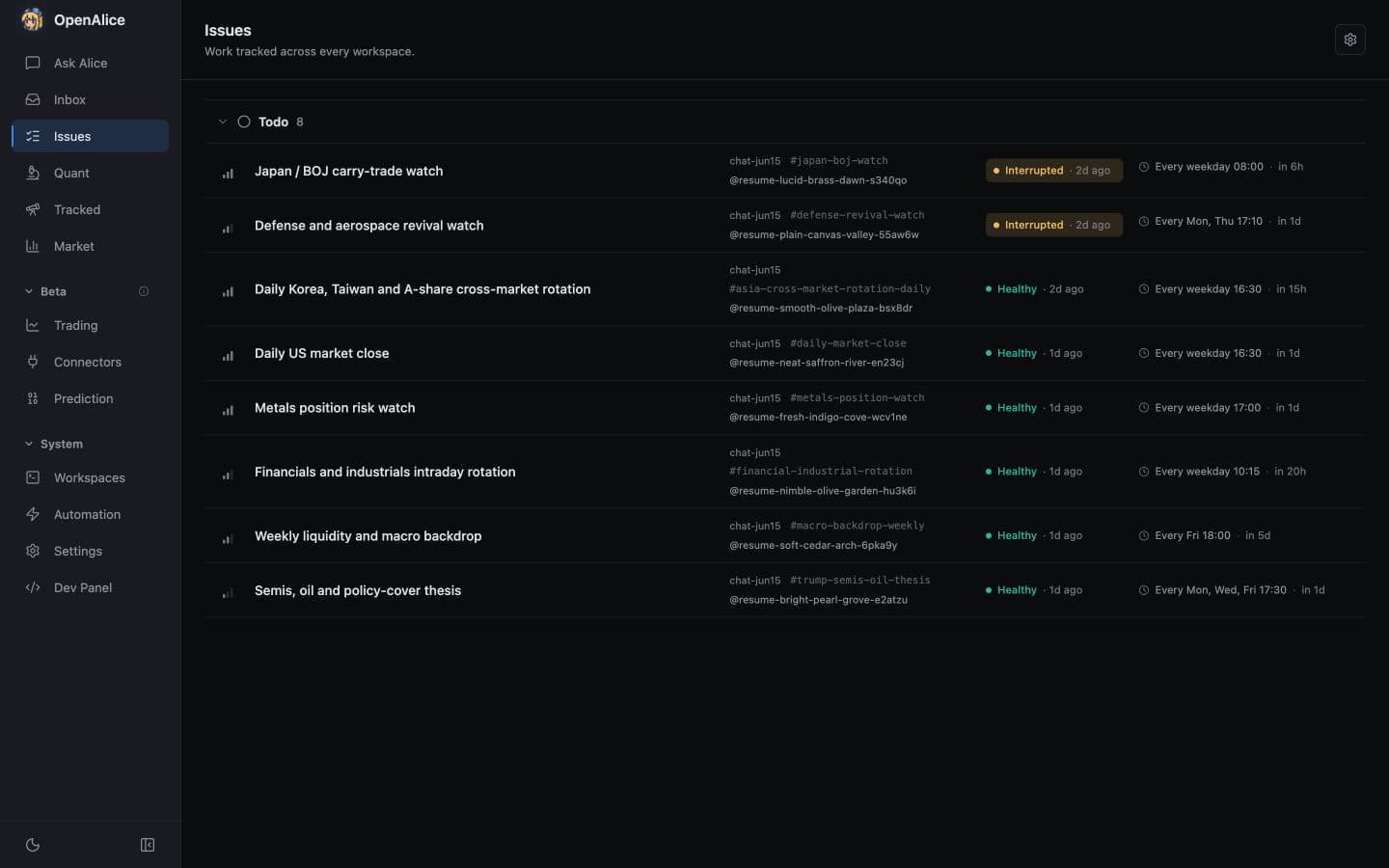
Open a healthy recurring Issue, inspect its schedule and attributable run history, then follow the latest output into its published Inbox report.
Headless identity
Every run has two important ids:
| Identity | Meaning |
|---|---|
taskId | One execution/turn, such as run-xxxxxxxx |
resumeId | The durable product Session that can continue after this turn |
A later follow-up gets a new taskId but may keep the same resumeId. Native
Claude/Codex/Cursor/Antigravity/Grok/Oh My Pi/OpenCode/Pi Session ids stay
backend-only.
The run registry also records Workspace, runtime, optional Issue id, prompt, status, start time, duration, exit code, lineage, and bounded diagnostics. Records and logs are retained rather than silently pruned.
Schedule an Issue
Add when to .alice/issues/<id>.md:
---
title: Pre-market brief
status: todo
priority: high
assignee: "@new-then-resume"
when: { kind: cron, cron: "30 8 * * 1-5", timezone: America/New_York }
agent: codex
credential: openai-primary
model: gpt-5.6-sol
effort: high
timeout: 30m
---

Read the watchlist and overnight news. Write `research/premarket.md` and push
it to Inbox only when something material changed.
The Markdown body is the complete prompt. @new-then-resume recruits a Session
on the first fire and then keeps it as the sticky owner. @new-each-run creates
a fresh Session for each fire; an exact @resumeId continues the same
responsible coworker. See Issue Board for the full
ownership contract.
When no attributable creator supplies ownership, omitting assignee on a
scheduled Issue defaults to @new-then-resume. Use @new-each-run explicitly
when every fire should start a fresh Session.
Supported schedules:
when: { kind: at, at: "2026-09-01T13:30:00Z" }
when: { kind: every, every: "30m" }
when: { kind: cron, cron: "0 9 * * 1-5", timezone: local }
Cron timezone may be local or an IANA zone. Market holidays and early closes are business rules in the Markdown body, not implicit cron behavior.
Cron catches up a missed admission by default. If the owning Session is busy,
the global worker pool is full, or dispatch fails before a run record exists,
that wall-clock occurrence stays due until OpenAlice accepts it. Set
catchUp: false when stale slots should be discarded and the Issue should wait
for the next future calendar time:
when: { kind: cron, cron: "30 8 * * 1-5", timezone: America/New_York, catchUp: false }
Catch-up does not retry a run that was accepted and later failed. That occurrence remains one attempt and uses Retry now.
agent, credential or credentialSource: native, model, and effort are
optional Session-creation selections for @new-each-run work and the first
@new-then-resume dispatch. A credential is a secret-free Alice-vault slug;
the native marker explicitly lets the Agent runtime manage access. Omitting
both inherits the Workspace's fixed, then recent, headless preference for that
Agent. OpenAlice freezes the tuple into the fresh Session binding and remembers
the accepted choice only in the Workspace's recent headless layer without
rewriting the Issue declaration or a fixed default. An exact @resumeId
already owns its runtime conversation, so none of these fields may be attached
to it and a resumed run never rewrites Workspace preferences. See Issue
Board for the complete contract.
timeout is independent of that Session-creation tuple. Choose 15m, 30m,
45m, or 60m when the scheduled turn needs a hard watchdog; omit it for no
limit so the Agent can exit naturally.
Scanner and manual runs
The scanner checks active Workspaces roughly once a minute. It stores a
dispatch cursor—the last accepted fire plus any held cron occurrence—while
schedule meaning stays in the Issue file. The last-fire cursor advances only
after successful admission. Capacity or transient launch rejection therefore
remains due unless that cron Issue explicitly sets catchUp: false.
done and canceled stop a schedule. A successful one-shot at Issue completes automatically. Offboarded Workspaces are absent from the active registry and cannot dispatch; a live headless run blocks offboarding.
The latest failed or interrupted scheduled run can be retried from Issue detail. Retry uses the current Issue contract but does not move the last-fire cursor, so recovery does not shift the normal cadence. A short dispatch guard prevents a manual retry and schedule tick from launching the same Issue simultaneously.
Run now uses the same dispatch path for any live scheduled Issue that is not already running. It starts an extra turn immediately without changing the next scheduled time. Use Retry now to recover a failed occurrence; use Run now to test the current prompt or handle a missed fire.
Automation health
The Issue API derives health from schedule markers, latest runs, and Session availability:
not_started,due,running,healthy— normal progress;interrupted— launcher restart, computer sleep, or substantially late watchdog handling cut the run off;failed— timeout, launch/runtime error, or non-zero process exit;blocked— no future fire or an unavailable exact Session owner;inactive— terminal Issue status stopped the schedule.
Health is not persisted into Markdown and does not require an Inbox push. A run that checks a condition and correctly exits silently can still be healthy.
Failure detail is projected from the durable run record, so old runs can gain a clear kind, title, message, and retryability explanation without rewriting their stored history.
Normalized output
Claude Code, Codex, Cursor Agent, Antigravity, Grok Build, Oh My Pi, OpenCode, and Pi emit different native streams. OpenAlice normalizes active runs into:
- latest completed assistant text;
- ordered text, tool, and error blocks;
- tool input/output and running/completed/failed status;
- compact reply/tool/failure metrics.
The UI reads a bounded structured snapshot instead of replaying the full vendor log on every poll. Raw stdout/stderr remain bounded diagnostic fallbacks. The Runs panel loads newest-first in cursor pages and shows final reply, tool activity, errors, and diagnostics.
If a runtime reports a transient error and later recovers, the completed result wins; recovered retries are not mislabeled as failed runs.
Deliver through Inbox
Structured output is the live control-plane result. A durable user-facing report should still be published explicitly:
alice-workspace inbox push --doc research/premarket.md --comments "Pre-market brief"
OpenAlice stamps the run's resumeId, taskId, optional issueId, and runtime. The attached document receives a publication-time SHA-256 revision so later edits do not blur what was sent. See Inbox.
Markdown remains the default agent-readable report. Static .html reports can
also be published for richer human presentation; OpenAlice previews them in an
origin-less sandbox with scripts, forms, navigation, and network disabled. The
Inbox comment should still carry a concise summary for agents and external
connectors.
External trigger
Another trusted system can start a run through:
POST /api/workspaces/:id/headless
See Webhook for request and response details. Treat access as agent-level access: a caller can request arbitrary work inside that Workspace. Keep remote OpenAlice behind the admin-token and TLS boundary.
Concurrency and trading safety
OpenAlice admits at most eight headless processes globally. Runs may overlap with interactive Sessions or other runs in the same checkout, so automation must tolerate concurrent edits.
Automation never bypasses UTA or Trading-as-Git safety. A headless Session may research or stage intent, but broker execution still follows the configured approval and push policy.
On packaged Windows, unattended runs use the bundled managed Pi and PortableGit/Bash toolchain. Source installs resolve Git Bash from the Windows Workspace-shell preference or Git for Windows; configure that path under Settings → General before relying on scheduled shell work.
Next Steps
- Issue Board — Author schedules, ownership, and health.
- Sessions & Collaboration — Understand
resumeId, exact continuation, and reconstruction. - Inbox — Publish revision-stamped reports and ask the sender.
- Webhook — Trigger a Workspace externally.